
Your ten-year-old is quietly playing a game with voice chat turned on. Your teenager just accepted a follow request from someone with no mutual friends and a profile picture that looks a little too polished.
You’re not watching either screen right now, and that’s completely normal — you can’t hover over a device forever. This is the exact moment most parents start searching for how to protect kids online safely, usually after noticing something small that made them pause.
I’m Saba, a technology content writer, and I’ve spent a good part of this year researching how families actually manage screens, apps, and online contact — not the scare-tactic version, but the practical one.
Protecting kids online safely isn’t about locking down every device or banning the internet. It’s about combining a few working parts: privacy settings, parental controls, secure devices, and honest, ongoing conversation. None of these alone is enough, but together they cover most of the gap.
Why Online Safety Matters for Kids

Kids today learn, play, and socialize online almost as naturally as they do offline. That’s not inherently a problem — it’s just where childhood happens now.
What matters is that a phone or tablet gives a child access to strangers, content, and information-sharing that a parent can’t fully see in real time.
A simple mix of settings, tools, and conversation closes most of that visibility gap without turning your home into a surveillance operation.
Common Online Risks Parents Should Know About
None of these risks mean disaster is guaranteed — they’re simply worth understanding so you know what you’re protecting against.
Inappropriate content shows up even on kid-friendly platforms, usually through recommendation algorithms rather than deliberate searching.
Contact from strangers, including in game chats, is a common way children encounter people misrepresenting who they are.
Cyberbullying doesn’t always look like obvious name-calling; it can happen quietly through group chats or exclusion.
Oversharing personal information — a school logo in a photo, a location tag, a casually mentioned routine — adds up in ways kids don’t always notice.
Scams and phishing links, weak passwords, unsafe app downloads, in-app purchases, and excessive screen time round out the list of everyday, manageable risks.
| Online Risk | Why It Matters | What Parents Can Do |
| Oversharing personal information | Details like school, location, or routines can spread beyond the intended audience | Teach kids what to keep private; review privacy settings together |
| Contact from unknown users | Strangers online aren’t always who their profile suggests | Restrict who can message or follow; review friend/follower lists |
| Cyberbullying | Can affect confidence, mood, and school life | Encourage open reporting; know how to block and report on each platform |
| Weak passwords | Makes accounts easier to hack or take over | Use unique passwords and enable two-factor authentication |
| Suspicious links and scams | Can lead to malware or stolen information | Teach the “stop, think, check” habit before clicking |
| Unsafe app downloads | Some apps request excessive data access | Review app permissions before approving installs |
How to Protect Kids Online Safely: 10 Practical Steps

1. Teach Kids What Personal Information to Keep Private
Start with a plain-language rule: full name, home address, school name, phone number, passwords, and location should stay private from anyone outside trusted family and friends.
I’d recommend explaining this with a simple test — “would you tell this to someone at a park you just met?” If not, it probably shouldn’t go online either.
This applies to photos too, since backgrounds often reveal more than kids realize (a house number, a school uniform, a street sign).
2. Set Up Privacy and Security Settings
This is one of the most immediate ways to protect kids online safely, and it takes less time than most parents expect. On Google devices and accounts, SafeSearch filters explicit results from search.
On most social and gaming platforms, setting accounts to private, limiting who can comment or message, and turning off precise location sharing meaningfully reduces unwanted contact. Review these settings together with your child rather than doing it silently — it becomes a teaching moment instead of just a restriction.
3. Use Parental Controls Wisely
Parental controls are a genuinely useful supporting tool, not a substitute for conversation. Google Family Link lets parents manage screen time, approve app downloads, and set content filters on Android devices, while Apple’s Screen Time with Family Sharing offers downtime schedules, app limits, content restrictions, and Communication Safety for Messages.
Microsoft Family Safety covers similar ground on Windows and Xbox. Features vary by device and region, so check the current settings on your child’s specific device rather than assuming every control works identically everywhere.
Controls work best as a safety net, not a replacement for explaining why a rule exists. A determined teenager can often find workarounds; one who understands the reasoning is less likely to look for one.
4. Keep Devices and Apps Updated
Software updates usually include security patches, not just new features, so turning on automatic updates for the operating system, browser, and apps closes known vulnerabilities before they become a problem.
Pair this with a screen lock or PIN, and enable two-factor authentication on accounts that support it, especially email and any account linked to payment methods.
5. Make Social Media Accounts Safer
Every platform handles privacy a little differently, so this depends on what your child actually uses. Generally, setting the account to private, reviewing who can message or follow, turning off location tagging, and checking who can tag your child in photos covers most of the exposure.
Show your child how to actually use the block and report options, not just that they exist, so they’re not stuck if something happens while you’re unavailable.
6. Make Online Gaming Safer
Voice and text chat in multiplayer games is an overlooked risk area, partly because it doesn’t feel like “the internet” in the way social media does.
Review chat and friend-request settings together, and talk about not clicking links shared by other players — a common phishing route.
In-app purchases deserve their own conversation, since many kids don’t register that virtual currency costs real money; a purchase PIN avoids surprise charges.
7. Teach Kids How to Spot Scams and Suspicious Messages
Prize notifications, “urgent” account warnings, and requests for passwords or personal details are common scam patterns aimed at younger users specifically because they’re less likely to recognize them. Teach a simple four-step habit:
Stop → Think → Check → Tell a trusted adult
This works better than a long list of rules because it applies to almost any suspicious message, regardless of platform.
8. Talk About Cyberbullying and Uncomfortable Interactions
Cyberbullying can look like exclusion from group chats, repeated mean comments, or spreading rumors as easily as it looks like direct insults.
Encourage your child to save evidence — screenshots, not just a description — before blocking or reporting, since platforms often ask for this when reviewing a report.
Make it clear that telling you won’t mean losing device access altogether; kids who fear losing their phone often stay quiet about problems instead of asking for help.
9. Create Simple Family Internet Rules
Rules that children help write tend to stick better than rules handed down without explanation. Cover screen-time boundaries, device-free times (meals, bedtime), what needs approval before downloading, and what to do if something feels wrong.
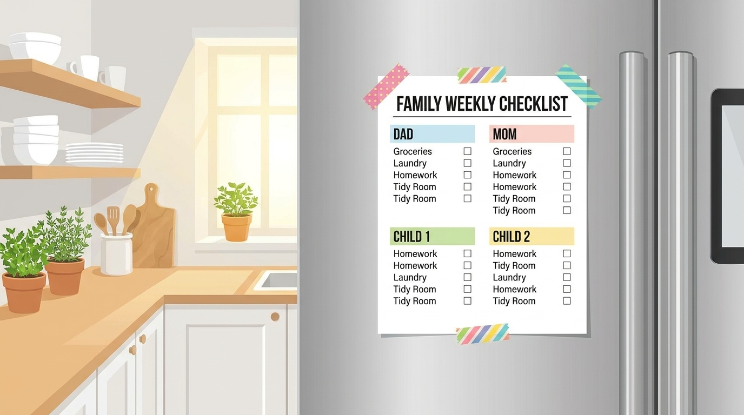
A short, written family agreement — even a casual one on the fridge — gives everyone a shared reference point instead of relying on memory during a disagreement. Also read 25 Time Management Tips That Actually Work
10. Encourage Kids to Tell You When Something Feels Wrong
This might be the single most protective habit on this list. Kids who believe they can come to a parent without immediate punishment are far more likely to report something uncomfortable early, before it escalates.
A simple, repeated message — “you can always tell me, and we’ll figure it out together” — does more long-term work than any individual setting.
Age-Appropriate Safety: Younger Kids vs. Teens

What “safe” looks like shifts as children get older, and treating a seven-year-old and a fifteen-year-old identically usually backfires in one direction or another.
| Younger Children | Older Children/Teens |
| Parent-managed or supervised accounts | More independent accounts with agreed check-ins |
| Strong content filtering by default | Focus shifts to privacy and communication settings |
| Supervised gaming sessions | Conversations about safer social media and gaming habits |
| Simple lessons on what’s private | Digital footprint awareness and scam recognition |
| Devices used in shared spaces | More device independence, paired with more trust-building |
Online Safety Checklist for Parents
| Safety Check | Done? |
| Device software is updated | ☐ |
| Strong password or PIN enabled | ☐ |
| Privacy settings reviewed together | ☐ |
| Parental controls configured appropriately for age | ☐ |
| Location sharing checked and limited | ☐ |
| App permissions reviewed before approval | ☐ |
| Child knows how to block and report | ☐ |
| Family internet rules discussed and agreed on | ☐ |
What to Do If Your Child Encounters Something Unsafe Online
Start by staying calm — a child who sees panic often stops sharing details out of fear they’ve done something wrong.
Save evidence with screenshots before blocking, then use the platform’s built-in reporting tools, provided by most major services for harassment, impersonation, or inappropriate contact.
If the situation involves a threat, explicit content, or suspected grooming, contact local law enforcement or your country’s designated child-safety reporting body.
In the US, the FTC’s OnGuardOnline resources outline reporting steps; UNICEF’s child online safety guidance is a useful international reference.
Follow up afterward — a short conversation about what happened reinforces that reporting leads somewhere useful, not nowhere.
Real-Life Example: How a Simple Family Safety Plan Can Work
Hypothetical Example. A twelve-year-old is playing an online multiplayer game when another player, claiming to be a similarly aged kid from a nearby city, asks to continue chatting on a separate messaging app “since the game keeps disconnecting.” At first, the child assumes this is normal — plenty of players in the game chat about switching platforms.
Because the family had already talked about this exact pattern — a stranger pushing a conversation off a public game chat onto a private one — the child recognized it as a “stop and check” situation and mentioned it to a parent that evening instead of agreeing right away.
The parent didn’t overreact. Together, they reviewed the game’s chat and friend-request settings, restricted messages to existing friends only, and reported the account through the game’s built-in tool.
They also talked through why moving a conversation off a monitored platform is a common tactic, without assuming bad intent — just treating it as a pattern worth caution either way.
The lesson wasn’t “never talk to anyone in games,” but that having a specific, named pattern to watch for made it much easier for the child to recognize and act on independently, rather than needing a parent to catch it after the fact.
Expert Tips for Helping Kids Build Safer Digital Habits

- Review settings periodically, not just once. Apps update their privacy defaults often enough that a setting checked six months ago may have quietly changed.
- Explain the “why” behind a rule, not just the rule itself — kids who understand reasoning adapt it to new situations parents haven’t anticipated.
- Make reporting problems feel safe, not punishable. A child worried about losing their phone will often hide a real problem instead of raising it.
- Model good privacy habits yourself. Kids notice when a parent shares freely online while telling them to be cautious.
- Review app permissions together rather than approving them automatically — many apps request camera, microphone, or location access they don’t strictly need.
- Teach a pause before clicking unfamiliar links, even from someone who appears to be a friend, since accounts get compromised.
- Remind them that online strangers aren’t automatically trustworthy, even if a profile looks convincing or shares mutual interests.
- Create a simple, named reporting plan — who to tell, and what happens next — so the steps are familiar before they’re ever needed.
Conclusion
Protecting kids online safely isn’t about switching off the internet or monitoring every message — it’s about layering a few practical habits: privacy settings that limit exposure, parental controls suited to your child’s age, secure and updated devices, and conversations that explain the reasoning behind each rule.
None of these steps needs to be perfect on its own, and no single tool covers everything. What actually works is the combination, kept current as your child grows and platforms change. Start with one or two steps from this guide this week — reviewing privacy settings together is usually the easiest place to begin — and build from there.
A safer online experience for your child comes less from restriction and more from steady, honest guidance they can carry with them even when you’re not watching the screen.
FAQs
How can I protect my child online?
Combine privacy settings, age-appropriate parental controls, secure devices, and regular conversations about what’s safe to share and who’s safe to talk to. No single tool covers everything, so layering a few habits works best.
What are the biggest online risks for kids?
Common risks include inappropriate content, contact from strangers, cyberbullying, oversharing personal information, scams, and weak account security. Most are manageable with the right settings and ongoing conversation.
Should parents use parental controls?
Parental controls like Google Family Link or Apple Screen Time are useful supporting tools for screen time, content filtering, and app approval, but they work best alongside communication, not as a replacement for it.
How can I protect my child’s personal information online?
Teach them to keep full name, address, school, phone number, and passwords private, and review privacy settings on apps together so they understand what’s shared by default.
How can I make social media safer for my child?
Set accounts to private, review who can message or follow them, turn off precise location sharing, and make sure they know how to block and report before they need to.
How can I keep my child safe while gaming online?
Review voice and text chat settings, discuss not clicking links from other players, and set purchase approvals or a PIN to prevent unexpected in-app spending.
What should I do if my child is being cyberbullied?
Save evidence with screenshots, use the platform’s reporting and blocking tools, and keep the conversation supportive so your child doesn’t hesitate to tell you if it happens again.
What should my child do if a stranger contacts them online?
Encourage them to pause, avoid sharing personal details, tell a trusted adult, and use the block or report feature rather than responding or trying to handle it alone.