
I still remember the moment I got locked out of an old email account because I couldn’t remember which of my “usual” three passwords I’d used, with which letter swapped for a number, on that particular site.
It’s a small, dumb frustration, but it adds up. If you’ve ever reset a password out of pure defeat, or typed the same one into five different logins because it’s easier to remember, you already understand why so many people search for the best password managers for beginners.
This guide is meant to actually answer that search, not throw a list of app names at you. I’ll walk through what these tools do, what actually matters when choosing one, and how a real beginner might get started without feeling overwhelmed.
What Is a Password Manager?

A password manager is an app that stores your login details in one encrypted place, often called a password vault, and fills them in for you when you visit a site or open an app. Instead of remembering fifty different passwords, you remember one strong master password that unlocks the vault.
Everything else — your usernames, passwords, sometimes payment cards and secure notes — sits behind that single point of entry, protected by encryption.
Most password managers also generate new passwords for you. Instead of typing “Rex2010!” for the tenth time, the app can create something like xT9!qLm2vP#eR7 and remember it so you never have to.
Why Beginners Should Consider Using One
If you’re new to all this, the benefit isn’t really about looking “techy.” It’s about closing a very ordinary, very common security gap. Reusing the same password across accounts means that if one site gets breached, every other account using that password is suddenly at risk too — a problem CISA specifically warns about.
A password manager fixes this by making unique, complex passwords for every account, so you’re not the weak link. It also saves genuine time, in the same spirit as the everyday AI tools I’ve written about that save real hours during the week. Autofill means fewer failed login attempts and fewer “forgot password” email chains. And most managers sync across your phone, laptop, and browser, so your logins travel with you instead of living in a sticky note or a notes app, which is honestly where a lot of people keep them right now.
What Makes the Best Password Managers for Beginners?

Not every password manager is built with a first-time user in mind — some are clearly designed for IT teams. Here’s what actually separates a beginner-friendly option from a complicated one.
Ease of Use
The interface should make sense the first time you open it. If you need a tutorial just to save your first password, that’s a bad sign for a beginner.
Security and Encryption
Look for zero-knowledge, end-to-end encryption, meaning even the company can’t read your stored passwords. Most reputable providers advertise this clearly.
Autofill and Password Generator
Autofill should work smoothly across your browser and mobile apps, and the built-in generator is what makes unique passwords realistic to maintain without thinking one up yourself.
Two-Factor Authentication (2FA/MFA)
The manager should support 2FA both for logging into the vault and for storing codes for your other accounts.
Cross-Device Access and Recovery
Passwords should sync cleanly across desktop, mobile, and browser extensions. Beginners also need a clear plan for a forgotten master password — some tools offer emergency access contacts; others are stricter.
Privacy, Transparency, and Free vs Paid
Check whether the company publishes its security practices and has undergone independent audits. Free plans vary too — some genuinely cover everyday needs, others feel more like a trial disguised as free. You can also read What Is Machine Learning? A Complete Professional Guide for 2026.
Best Password Managers for Beginners: What to Look For
I wouldn’t rank tools purely by price, and I’d be cautious of any article that hands you a “best of” list without explaining why. Instead, use this as a framework and confirm current details directly on each provider’s site before deciding, since pricing and features do change.
Bitwarden is frequently recommended for beginners because its free tier is unusually generous — unlimited passwords, syncing across unlimited devices, and a password generator, with AES-256 encryption behind it.
It’s also open source, so outside security researchers can inspect the code, adding transparency closed-source tools don’t offer. Its paid tier adds an integrated authenticator and emergency access at a modest price.
1Password doesn’t offer a permanent free plan, only a trial, but it’s known for a clean interface and strong support for passkeys — a newer, passwordless login standard backed by the FIDO Alliance. If a guided experience matters more than saving money, it’s worth trying during the trial.
Dashlane and NordPass are also commonly used and worth comparing directly, especially if built-in VPN features matter to you. Whichever you pick, verify current pricing and features yourself rather than relying on any single source, including this one.
Real-Life Example: How a Beginner Could Start Using a Password Manager
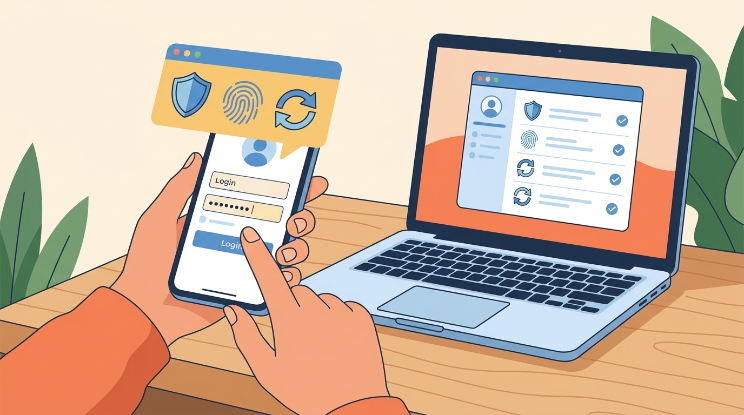
Here’s a realistic, hypothetical scenario to make this practical. Say someone — we’ll call her Amna — has around thirty online accounts. She reuses two or three passwords across most of them and has been locked out of her food delivery app twice this year alone.
Amna decides to try a password manager after reading about a data breach involving a site she uses. Here’s roughly how that transition would go:
- She chooses a manager suited to beginners — something with a clean interface and a workable free tier, so she isn’t paying before she knows if she likes it.
- She creates a strong, memorable master password — ideally a random phrase rather than a single word, something long enough to resist guessing but not so obscure she’ll forget it herself.
- She imports or manually adds her existing accounts, starting with the important ones: email, banking, and social media.
- She lets the generator replace her weak, reused passwords one at a time, starting with the accounts tied to money or personal data.
- She turns on two-factor authentication, both for the vault itself and for her most sensitive accounts, adding a second layer beyond just the password.
- She installs the browser extension and mobile app, so autofill works everywhere she actually logs in.
- She runs the built-in security check, which flags weak or reused passwords she hasn’t updated yet, and works through the list gradually rather than all at once.
- She sets up account recovery, so a forgotten master password doesn’t mean losing access to everything.
None of this happens in one sitting, and it doesn’t need to. Most beginners spend a weekend getting the important accounts set up, then clean up the rest over the following weeks.
If you tend to put off admin tasks like this, a few ideas from my piece on practical time management habits can help you break it into sessions instead of one long slog.
Expert Tips for Choosing a Password Manager as a Beginner

Don’t choose based on price alone. A free plan missing 2FA support or syncing isn’t really free if it leaves you exposed. Compare what each tier includes, not just the sticker price.
Check supported devices and browsers before committing. If a manager lacks a solid extension for your main browser, autofill won’t feel worth it. My guide to evaluating browser extensions for productivity covers similar questions worth asking here.
Look for transparent security practices. Providers that publish audits, whitepapers, or open-source code show more accountability than ones that just say “we take security seriously.”
Use a genuinely strong, unique master password. This is the one password you can’t recover if you truly forget it, so it deserves real thought — not something reused from another account.
Enable multi-factor authentication wherever it’s offered. It’s one of the most effective steps recommended by agencies like CISA for reducing account takeover risk.
Understand recovery options before you need them. Know whether your provider offers emergency access or recovery codes, so you’re not figuring it out mid-crisis.
Consider whether you need family or sharing features. If you’re managing passwords for a household, check whether the plan supports shared vaults before assuming you’ll upgrade later.
Keep recovery information stored somewhere separate and secure, like a written copy in a locked drawer, rather than only in your email.
Common Password Manager Mistakes Beginners Should Avoid
A few habits undercut the whole point of using one of these tools. Writing your master password in a notes app defeats the purpose of centralizing your security. Skipping two-factor authentication because it feels like an extra step leaves your vault more exposed than it needs to be.
Choosing a manager purely because it’s free, without checking whether it covers your devices, often means switching tools again within months.
And ignoring the alerts a password manager gives you about weak or reused passwords means the tool is doing its job while you aren’t acting on it.
Are Password Managers Safe?

No security tool is unhackable, and it would be dishonest to promise otherwise. What password managers do offer, when built well, is zero-knowledge encryption, meaning your data is scrambled before it leaves your device, so even the company storing it can’t read your vault.
The realistic risk isn’t usually the encryption failing — it’s a weak master password, a reused one, or skipping two-factor authentication. Following guidance from the National Institute of Standards and Technology on password length and uniqueness, and turning on MFA, meaningfully closes that gap.
Used properly, a password manager is still far safer than reusing weak passwords across dozens of accounts. This matters even more if you run accounts for a small store or side business — something I touch on in what running an e-commerce business actually involves, where account security is part of the job, not an afterthought.
Final Thoughts
Here’s what I’d actually want you to walk away with: forget finding the “perfect” password manager, because it doesn’t exist. What you need is something better than what you’re doing right now — and for most of us, that’s not a high bar to clear.
Pick one that feels beginner-friendly, come up with a single master password you’ll genuinely remember, turn on two-factor authentication, and let the app do the boring work of keeping track of everything else.
It sounds small. It is small, really. But it quietly patches one of the most common security holes most people are walking around with, without ever realizing it’s there.
Frequently Asked Questions About Password Managers
What’s actually the best password manager for someone just starting out?
Honestly, it depends more on your habits than on any single “winner.” That said, Bitwarden usually comes up first for beginners because its free plan doesn’t feel like a stripped-down trial — it’s genuinely usable. 1Password is the other one I’d point a beginner toward, mostly because it holds your hand a bit more during setup. Whichever one you’re leaning toward, just double-check the current features on their site before committing. Things change.
Okay, but are they actually safe?
For the most part, yes — as long as you’re not the weak link. A strong, one-of-a-kind master password plus two-factor authentication turned on takes care of almost every realistic risk. The encryption side of things is rarely where people get burned. It’s usually the human habits around it.
Is it worth paying, or is free enough?
I’d say try free first. If you find yourself wanting emergency access, more storage, or a built-in authenticator down the line, that’s when upgrading starts to make sense. There’s no rule that says you have to pay on day one.
Can these things get hacked?
Nothing online is bulletproof, and I’m not going to pretend otherwise. But a well-built password manager with regular security audits is still miles safer than what most people are doing right now — reusing the same three passwords everywhere.
Do free password managers actually hold up?
For everyday use, yes, more often than people expect. Unlimited storage, syncing across your devices, a password generator — a lot of that is included free. The stuff you’ll pay for is usually extra polish, not core security.
So how do I actually get started?
Pick something beginner-friendly, come up with one really solid master password, load in your important accounts first — email and banking before anything else — turn on 2FA, and add the browser extension so autofill actually works. That’s really it.
Should I just stick with what my browser already saves?
You could. It’s better than nothing. But dedicated password managers tend to encrypt things more seriously, sync across different browsers instead of locking you into one, and warn you when a password’s been caught in a breach — which most browsers won’t do.