
You’re in the middle of a video call, or trying to get a show to load, and the little spinning wheel just won’t quit. You refresh the page, restart the app, and nothing changes. Most people jump to the same conclusion: “My internet plan must be too slow, I need to upgrade.” That’s often not what’s actually happening.
Slow Wi-Fi and slow internet aren’t always the same problem, and neither one automatically means you need new equipment or a bigger monthly bill. Sometimes it’s where the router sits. Sometimes it’s one device quietly hogging bandwidth in the background.
Sometimes it really is the internet provider having an off day. Learning how to troubleshoot slow wifi at home, means working through these possibilities in order, instead of guessing.
Hi, my name is Saba Amjid. I am a professional Content Writer with expertise in Tech blogs. This guide walks through that process step by step, starting with the easiest checks first — no networking experience required, just a few minutes and a device to test with.
Quick answer: Check whether one device or every device is affected, run a speed test, move closer to the router, restart your modem and router, and check how many devices are using bandwidth.
If Ethernet is fast while Wi-Fi is slow, the issue is likely wireless. If Ethernet is slow too, the problem is probably upstream — modem, router, or ISP.
Is Your Wi-Fi Slow, or Is Your Internet Slow?

These two terms get used interchangeably, but mixing them up is one of the biggest reasons people troubleshoot the wrong thing.
Wi-Fi is the wireless link between your devices and your router — signal strength, the frequency band you’re on, walls between you and the router, and nearby interference.
Internet service is what your ISP delivers to your home, through the modem, before it ever reaches the router. If that connection itself is degraded, no amount of router repositioning will fix it.
A simple way to separate the two: if every device in the house is sluggish — phones, laptops, the smart TV — the cause more likely sits upstream, in the modem, router, or the ISP’s connection.
If only one device is affected while everything else works fine, the problem is probably specific to that device: its Wi-Fi adapter, its software, or something running in the background. It’s not a perfect rule, since causes can overlap, but it’s a genuinely useful starting point.
What Causes Slow Wi-Fi at Home?
A slow connection rarely has one cause. Common contributors include:
- A router placed in a corner, cabinet, or basement, far from where you actually use devices
- Physical obstructions like concrete walls, mirrors, or large appliances between you and the router
- Too many devices competing for bandwidth at once
- Outdated router firmware or an aging router that no longer keeps up
- Wireless interference from neighboring networks or nearby electronics
- An ISP issue, outage, or a connection that’s genuinely underperforming your plan
The rest of this guide walks through how to check each one, starting with the fastest ways to narrow things down.
How to Troubleshoot Slow Wi-Fi at Home
1. Run a Speed Test
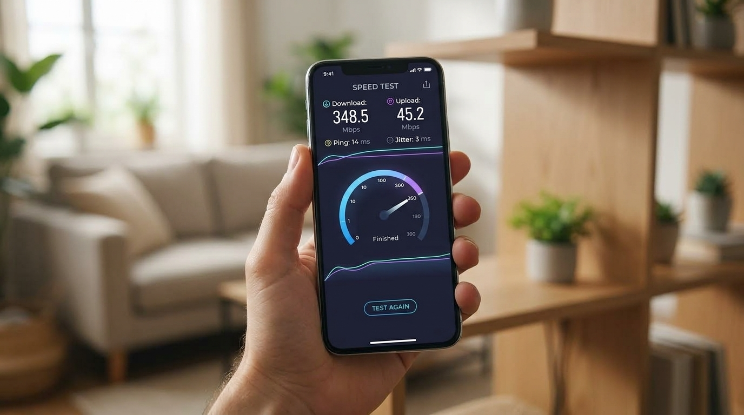
Before changing anything, get a baseline. A speed test measures three things: download speed (how fast data comes to you), upload speed (how fast you send data out), and ping or latency (how long a signal takes to make a round trip — this matters a lot for gaming and calls).
One speed test is a snapshot, not a verdict. Results shift based on network congestion, time of day, and which test server you connect to. I’d run it two or three times at different moments — once during the slowdown, once when things feel normal — before drawing conclusions.
2. Check Whether One Device or Every Device Is Slow
This single check does more to narrow the problem than almost anything else. Try loading the same page or running a speed test on two or three different devices at the same time.
One device slow → look at that device. Update it, restart it, check for background downloads.
Every device slow → look at the network. Router, modem, or ISP are the likelier culprits.
3. Restart Your Modem and Router
This is the classic fix for a reason: it clears temporary memory issues and forces your equipment to reconnect fresh to your ISP. Unplug the modem and router, wait about thirty seconds, then power the modem back on first, followed by the router once it’s fully booted. Check your specific manufacturer’s instructions too, since steps vary slightly by device.
One important distinction: restarting is not a factory reset. Restarting just power-cycles the device. A factory reset wipes your network name, password, and custom settings back to defaults, meaning you’ll reconfigure everything from scratch — don’t reach for it unless restarting and other steps genuinely haven’t helped.
4. Move Your Router to a Better Location
I’d start by checking whether the router is tucked inside a cabinet, sitting on the floor, or pushed into a corner far from where the household actually uses devices. Placement isn’t one-size-fits-all — it depends on your home’s layout and building materials — but a few principles hold up well:
- Central, open locations tend to cover more of the home than corners
- Elevated spots (a shelf, not the floor) usually perform better
- Keep the router out of cabinets and away from large metal appliances, since Wi-Fi is weakened by dense materials like concrete and thick walls
There’s no single “perfect spot” for every house, so this often takes some trial and error.
5. Test Your Connection Close to the Router
A quick way to isolate signal strength: run a speed test where things feel slow, then move right next to the router and run it again.
A big improvement nearby points to a signal or distance problem — placement, walls, or interference. If speeds stay slow even beside the router, the bottleneck is more likely upstream, in the modem, router hardware, or the connection itself.
6. Check How Many Devices Are Using Your Wi-Fi
Bandwidth is a shared resource. A 4K stream, a large cloud backup, an online game, and a video call running at once can genuinely compete with each other, especially on an older router or a modest plan.
Smart-home devices, cameras, and multiple phones add up too, even if each uses relatively little alone. If slowdowns happen mainly during peak household hours — evenings, weekends — check this first.
7. Compare 2.4 GHz and 5 GHz

Most routers broadcast on two bands, and understanding the difference helps explain a lot of “it’s fast in one room and slow in another” situations.
| Feature | 2.4 GHz | 5 GHz |
| Typical range | Longer | Shorter |
| Potential speed | Generally lower | Generally higher |
| Wall penetration | Better | Weaker |
| Interference | Often more crowded (shared with many household devices) | Often less crowded |
| Best suited for | Devices farther from the router, basic browsing | Devices closer to the router, streaming, gaming |
Neither band is “faster” in every situation — a device far from the router often does better on 2.4 GHz despite its lower ceiling, simply because it holds the connection more reliably at range.
Newer routers may also support additional bands and Wi-Fi standards, which can shift these trade-offs depending on your equipment.
8. Look for Wireless Interference
Wi-Fi shares airspace with neighboring networks on the same channel, some Bluetooth devices, certain microwaves, and dense physical obstructions.
How much this affects you depends heavily on your building — in a house with few neighbors it may barely register; in an apartment building, it can be real.
If you suspect congestion, many routers let you manually change the channel, or auto-select the least crowded one, usually in the admin settings or companion app.
9. Update Your Router and Device Software
Outdated firmware on your router, or outdated operating systems and network drivers on your devices, can cause compatibility issues and, sometimes, security gaps.
Manufacturers occasionally release updates aimed specifically at connection stability under load.
That said, an update won’t necessarily make Wi-Fi dramatically faster on its own — treat it as routine maintenance rather than a guaranteed fix, and check it early since it’s quick to rule out.
10. Test With an Ethernet Cable
If you have a laptop or desktop nearby, this test tells you a lot. Plug it directly into the router with an Ethernet cable and run a speed test.
Ethernet is fast, Wi-Fi is slow → the issue is likely wireless — placement, interference, or the band you’re connected to.
Ethernet is also slow → the problem is probably upstream, in your modem, router, or the connection coming from your ISP.
It’s one of the more reliable ways to separate a Wi-Fi problem from an internet problem, and it only takes a couple of minutes.
11. Check Your Cables and Networking Equipment

Your connection is only as fast as its slowest link. An older or lower-rated Ethernet cable, an aging modem, or a tired switch can all cap your speeds even when everything else works correctly.
With a mesh Wi-Fi system, a weak link between mesh points can create its own bottleneck, separate from anything your ISP is doing.
12. Check Whether Your ISP Is Having Problems
Sometimes the home network is doing everything right and the issue sits entirely with the provider — an outage, scheduled maintenance, regional congestion, or a connection underperforming what you’re paying for.
If you’ve worked through the steps above and speeds are still consistently below your plan, it’s reasonable to contact your ISP directly.
Table: Symptom → Possible Cause → What to Try
| What You Notice | Possible Cause | What to Try |
| Only one device is slow | Device-specific issue | Restart or update the device, close background apps |
| Every device is slow | Router, modem, or ISP issue | Restart network equipment, then run a speed test |
| Wi-Fi is slow far from the router | Weak signal / distance | Test closer to the router, check placement |
| Wi-Fi slows during busy hours | Network congestion | Check connected devices, note the time pattern |
| Ethernet is fast but Wi-Fi is slow | Wireless-specific issue | Check placement, band, and interference |
| Ethernet is also slow | Upstream / ISP issue | Contact your ISP, check modem status |
| Wi-Fi works in one room but not another | Coverage gap | Consider router placement or mesh Wi-Fi |
Quick Wi-Fi Troubleshooting Checklist

| Check | What to Do |
| Speed test | Compare results with your plan, at different times |
| One vs. all devices | Narrow the problem to a device or the network |
| Router restart | Power-cycle modem and router (not a factory reset) |
| Router location | Move to a central, open, elevated spot |
| Distance test | Compare speeds close to and far from the router |
| Connected devices | Check for heavy bandwidth users at busy times |
| Frequency band | Test both 2.4 GHz and 5 GHz where available |
| Updates | Check router firmware and device software |
| Ethernet test | Compare wired speed against Wi-Fi speed |
| Cables and equipment | Rule out an aging cable, modem, or mesh point |
| ISP | Contact them if the issue persists after these checks |
When Should You Replace Your Router?
Troubleshooting first matters, since a lot of “slow Wi-Fi” is fixable without spending anything. That said, there are genuine signs it’s time to upgrade:
- The router is several years old and no longer receives security or firmware updates
- Coverage stays poor even after trying sensible placement
- It struggles to keep up with the number of devices your household actually uses
- Connections drop frequently, even close to the router
- It only supports an older Wi-Fi standard that limits speed regardless of your internet plan
None of these are the first thing to check — consider them only after the steps above haven’t helped.
Real-Life Troubleshooting Example (Hypothetical)
To see this process in action, imagine a household where Netflix keeps buffering in the evening, video calls occasionally freeze, and phones feel sluggish browsing social media.
- Speed test: Results come back noticeably lower than the plan promises, but only in the evening.
- Multiple devices: A laptop and phone tested side by side are both slow, pointing toward the network rather than one device.
- Move closer to the router: Speeds improve modestly but not dramatically — distance isn’t the main issue.
- Connected devices check: A phone is running a large cloud backup while a smart TV streams 4K elsewhere, both eating into shared bandwidth at peak hours.
- Router placement: The router turns out to be sitting inside a TV cabinet, muffling the signal.
- Ethernet test: A laptop plugged in directly still shows lower-than-expected speeds, hinting the connection itself is part of the story.
- Conclusion: The slowdown is likely peak-hour bandwidth competition plus poor placement, with a connection possibly near its limit at busy times — worth raising with the ISP if it persists after fixing placement and easing device load.
This kind of layered cause is common. Rarely is slow Wi-Fi down to just one thing.
Expert Tips for Better Home Wi-Fi

- Keep router firmware updated rather than ignoring update notifications
- Place the router in an open, central spot — avoid cabinets and low corners
- Test speeds at a few different distances to understand your home’s actual coverage
- Compare Wi-Fi against Ethernet whenever you’re unsure if the problem is wireless
- Keep an eye on which devices use the most bandwidth during peak hours
- Note whether slowdowns happen at specific times of day, which points toward congestion
- Separate device-specific issues from network-wide issues before changing settings
- Avoid changing router settings you don’t fully understand — it can create new problems
- Consider mesh Wi-Fi specifically for coverage gaps in larger homes, not as a general speed fix
A quick note on mesh Wi-Fi: Mesh systems use multiple connected points spread through a home to extend coverage, instead of relying on a single router.
They genuinely help in larger homes or houses with dead zones. What mesh doesn’t do is increase the internet speed coming from your ISP — it redistributes your existing connection more evenly.
Placement still matters: points spaced too far apart create a weak link that becomes its own bottleneck. It’s a coverage solution first, not a substitute for troubleshooting an underlying connection issue.
Conclusion
Slow Wi-Fi is frustrating, but it’s rarely a mystery once you work through it methodically. Figure out whether one device or the whole household is affected, then run a speed test for a real baseline.
Move closer to the router to rule out distance, check placement, and see how many devices are competing for bandwidth. Comparing Ethernet against Wi-Fi is one of the fastest ways to tell whether the issue is wireless or something upstream.
That’s the core of how to troubleshoot slow Wi-Fi at home — working through possibilities in order instead of assuming the worst. Most of the time, the fix is a restart, a better router location, or trimming what’s competing for bandwidth, not a new router or a pricier plan. Save the upgrade conversation for after you’ve ruled out the simpler stuff.
10. FAQs
Why is my Wi-Fi suddenly so slow?
A sudden slowdown is usually temporary and often traces back to network congestion, a device or app using heavy bandwidth in the background, router placement, or a brief ISP issue. Restarting your modem and router is a reasonable first step.
How can I troubleshoot slow Wi-Fi at home?
Start by checking whether one device or every device is affected, run a speed test, move closer to the router, restart your equipment, and check how many devices are actively using bandwidth. Testing with an Ethernet cable helps separate a wireless issue from a broader connection issue.
How do I know whether my router or my ISP is the problem?
Plug a device directly into the router with an Ethernet cable and run a speed test. If wired speeds are also slow, the issue is more likely with your modem, router, or ISP rather than Wi-Fi itself.
Why is Wi-Fi slow in one room but fast in another?
This usually points to distance from the router, walls or obstructions, or being connected to a less optimal frequency band in that area of the home. Router placement and coverage gaps are the most common causes.
Does restarting my router actually make Wi-Fi faster?
It can, particularly if the slowdown is caused by a temporary glitch or memory buildup on the device. It won’t fix issues rooted in placement, interference, or an ISP outage, but it’s a quick, low-effort step worth trying early.
Is 5 GHz always faster than 2.4 GHz?
Not always. 5 GHz generally supports higher speeds at shorter range, while 2.4 GHz travels farther and penetrates walls better, though often at lower speeds. Which one performs better depends on your distance from the router and your home’s layout.
How many devices can slow down home Wi-Fi?
There’s no fixed number — it depends on what each device is doing. A handful of devices doing heavy tasks like 4K streaming or large downloads at once can affect performance more than a dozen devices doing light browsing.
When should I replace my Wi-Fi router?
Consider it if the router is old and no longer receives firmware or security updates, coverage stays poor despite sensible placement, or it can’t keep up with your household’s device count — but only after ruling out simpler fixes first.